How To Use UpNext DJ Desktop

Complete step-by-step guide to mastering every feature of UpNext DJ Desktop for macOS and Windows

📋 Quick Navigation

🚀 Getting Started

Welcome to UpNext DJ Desktop! This guide will walk you through everything you need to know to run successful DJ events.

First-Time Setup

1
Download and Install
Download the installer from the Desktop App page. For Mac, drag to Applications. For Windows, run the installer.
2
Sign In with Apple
Launch the app and sign in with your Apple ID. This is required for DJ access and syncs your events across devices.
3
Choose Your Subscription
Select Monthly ($9.99), Yearly ($99), or Lifetime ($199). Use promo code FREEACCESS to get your first month free!
4
Set Up Your Music Library
Point the app to your music folders so it can match guest requests to your collection. See the Music Library section below.
💡 Pro Tip:

The first month free promo code works on ALL subscription tiers - even the Lifetime plan! Try it risk-free.

🎵 Setting Up Your Music Library

Your music library is the heart of UpNext DJ Desktop. The app scans your local music files to instantly match guest requests to songs you actually have.
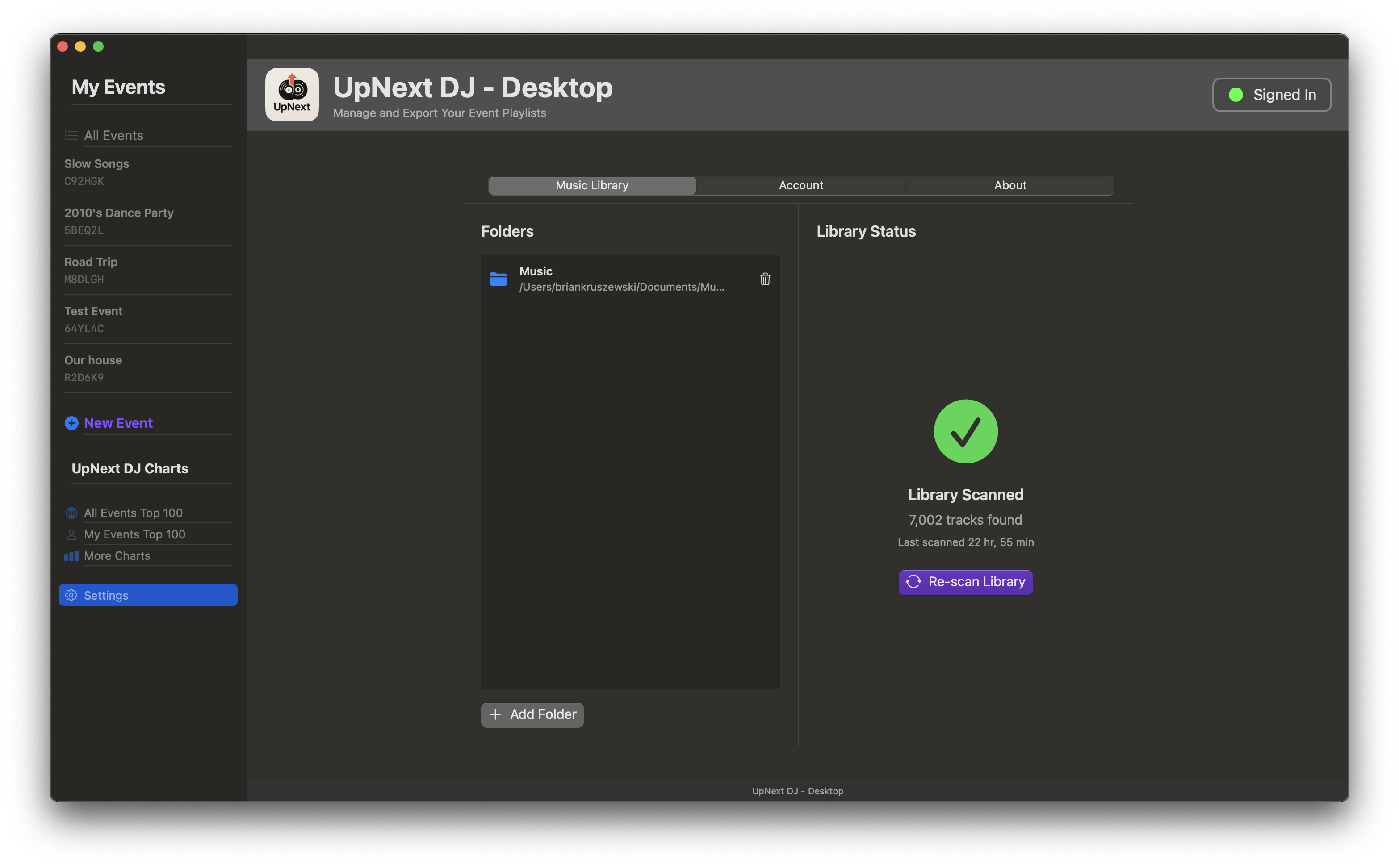
Music Library Scanner
Music Library Settings - Add folders and scan your collection

Adding Your Music Folders

1
Open Settings
Click Settings in the sidebar to open the preferences panel.
2
Add Music Directory
Click "Add Folder" and navigate to where your music is stored. Common locations include ~/Music, external drives, or network storage.
3
Scan Your Library
Click "Scan Library" to index all your music files. The app reads metadata (artist, title, album) from your files.
4
Wait for Scan to Complete
Scanning time depends on library size. A collection of 10,000 songs typically takes 2-5 minutes.
💡 Pro Tip:

You can add multiple folders from different locations! Perfect if you have music on both internal and external drives.

✨ Creating an Event

Events are how you organize each gig. Create unlimited events and switch between them instantly.
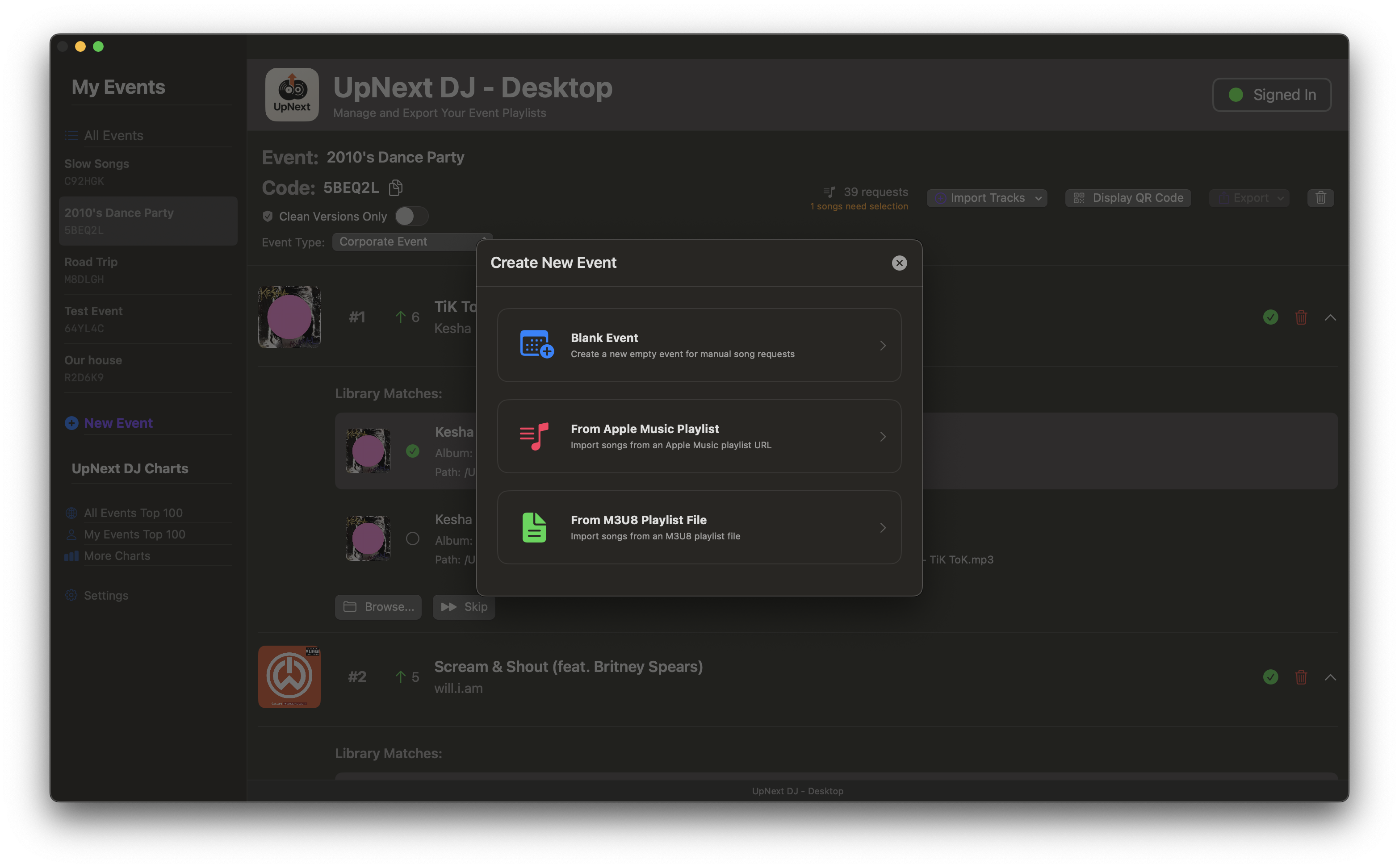
Create New Event Dialog
Create Event - Set name, type, and clean-only filter

How to Create an Event

1
Click "New Event"
Find the "New Event" button in the sidebar or press Cmd+N (Mac) or Ctrl+N (Windows).
2
Name Your Event
Give it a memorable name like "Sarah's Wedding" or "Birthday Bash - July 4th". This helps you find it later.
3
Choose Event Type (Optional)
Select from Wedding, School Dance, Corporate Event, or Private Party. This helps with analytics and charts.
4
Enable Clean-Only Mode (Optional)
Toggle this on to automatically filter explicit content and prioritize clean versions. Perfect for family-friendly events!
5
Click "Create"
Your event is now live! Guests can start joining and making requests immediately.
My Events View
My Events - View and manage all your events

🎧 Viewing Song Requests

Monitor all song requests from your guests in real-time. See what your crowd wants to hear!
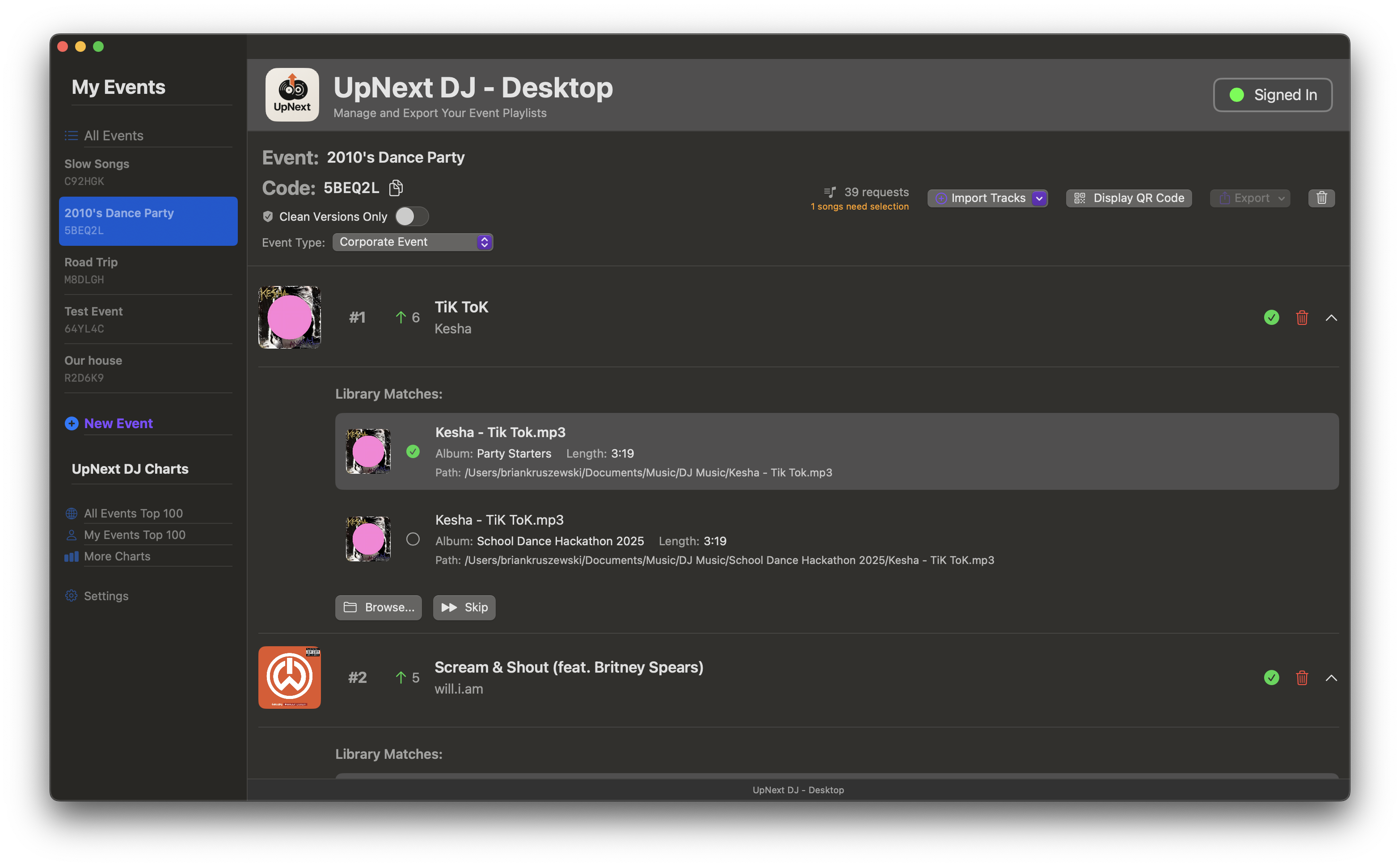
Event Request Queue
Request Queue - Real-time view of all song requests with votes

Understanding the Queue

Songs are automatically sorted by vote count. The most popular requests appear at the top, making it easy to see what the crowd wants.

How Voting Works

👍
Upvotes
Guests can upvote song requests they want to hear. Each upvote increases the song's position in the queue.
👎
Downvotes
Guests can downvote requests they don't want. Downvotes lower a song's position in the queue.
📊
Vote Count
The net vote count (upvotes minus downvotes) determines the song's ranking. Higher votes = higher priority.

Using the Queue

View all requests sorted by popularity. Use this information to decide which songs to play next, keeping the crowd engaged by playing their favorites!

💡 Pro Tip:

Keep an eye on vote counts! A song with many votes means the crowd really wants to hear it. Prioritize those to keep energy high.

📥 Importing Songs into an Event

Pre-load your events with playlists! Import from Apple Music, Spotify, M3U8 files, or CSV to start with a curated setlist. You can import into an existing event or create a brand new event directly from a playlist.
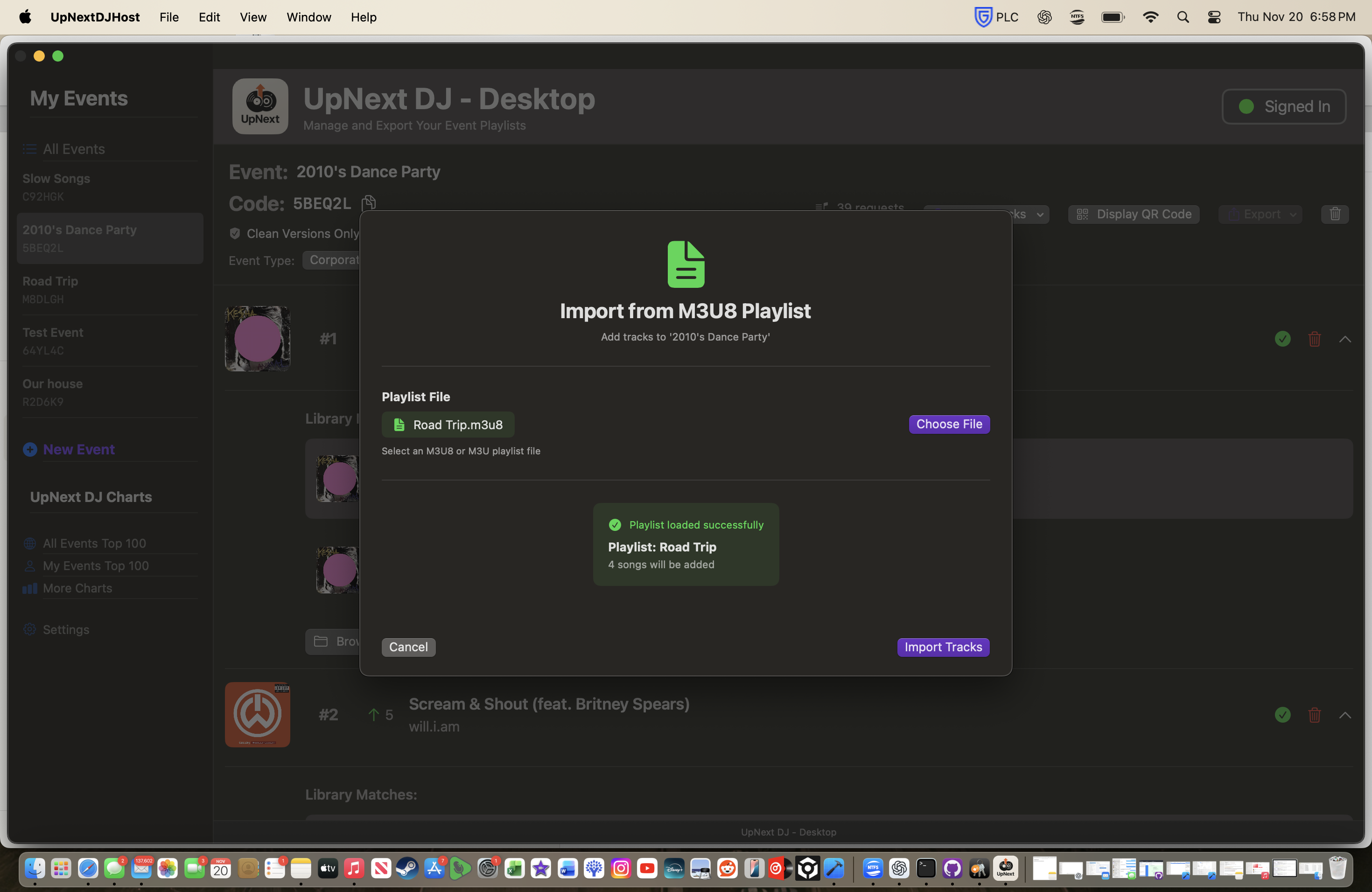
Import Playlist
Import Dialog - Add songs from M3U8 or CSV files

Supported Import Formats

M3U
M3U8 Playlist Files
Import playlists from VirtualDJ, Rekordbox, Serato, or any DJ software that exports M3U8 format.
CSV
CSV Files
Import song lists from spreadsheets. CSV should have columns for Artist and Title (and optionally Album).

How to Import

1
Open Your Event (or Create New)
Select an existing event, or choose "Import to New Event" from the main menu.
2
Click "Import Playlist"
Find the Import button in the toolbar or event menu.
3
Choose Your File
Select a file or choose a playlist from your connected Apple Music/Spotify account.
4
Review and Import
The app shows you which songs will be imported and attempts to match them to your music library. Click "Import" to add them to your event.

Why Import Playlists?

💡 Pro Tip:

Create event templates by exporting successful events to M3U8, then import them as starting points for future similar gigs!

🏷️ Tagging & Analytics

Tagging your events correctly unlocks powerful analytics and contributes to the UpNext DJ Music Charts.

Why Tag Your Events?

💡 Pro Tip:

Always select the correct event type (Wedding, School Dance, Corporate, Private Party) when creating an event. It makes your "My Events Top 100" charts much more useful!

💾 Exporting Playlists

Export your event's song requests to your DJ software. Perfect for record-keeping and playlist building.

Export Formats

M3U
VirtualDJ & Rekordbox
M3U8 format works with VirtualDJ, Rekordbox, and most DJ software. Imports as a playlist with all your event songs.
CSV
Serato & Spreadsheets
CSV exports include artist, title, album, and file paths. Import to Serato or open in Excel for analysis.

How to Export

1
Open Your Event
Select the event you want to export from the sidebar.
2
Click "Export"
Find the Export button in the toolbar or event menu.
3
Choose Format
Select M3U8 or CSV depending on where you want to use the playlist.
4
Save or Import
Save the file and import to your DJ software.

🏆 Using Top 100 Charts

Discover the most requested songs across your events or globally. Build data-driven playlists!
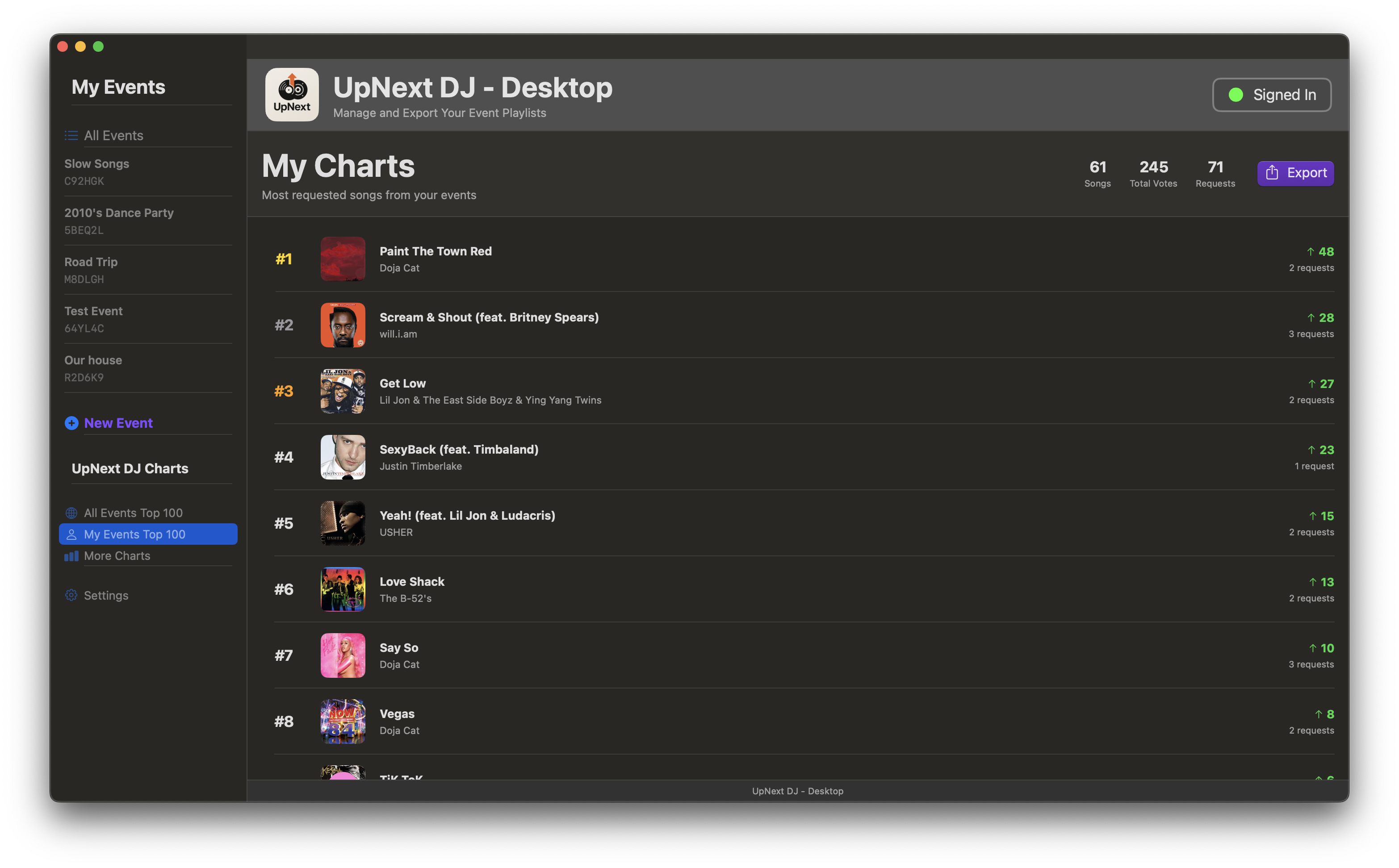
Top 100 Charts
Top 100 All Events - See trending songs globally

Chart Types

📊
My Events Top 100
See the 100 most requested songs across ALL your events. Learn what works for your specific audience.
🌍
All Events Top 100 (Global)
View trending songs from ALL DJs using UpNext globally. Discover what's hot right now!

How to Use Charts

Charts show:

You can export any chart to CSV or M3U8 format to use as a starting playlist for your next event!

💡 Pro Tip:

Check the global Top 100 before your gig to see what's trending. Pre-load those songs and you'll be ready for popular requests!

🏷️ Tag-Based Top 100 Charts

View the most requested songs filtered by event type - perfect for building genre-specific setlists!

Available Event Type Tags

💒
Weddings
Top 100 songs requested at wedding receptions worldwide. Perfect for building your wedding playlists with proven crowd-pleasers.
🎓
School Dances
Most popular tracks at proms, homecoming, and school events. Know what students are requesting before you arrive!
🏢
Corporate Events
Professional event favorites for company parties, conferences, and networking events. Keep it classy and crowd-approved.
🎊
Private Parties
Top requests from birthday parties, house parties, and casual gatherings. Fun, energetic tracks that get people dancing!

Global vs. My Events

Each event type has two chart views:

How to Access Tag Charts

1
Navigate to More Charts
Click the "More Charts" button from the main screen
2
Choose Event Type
Select a tag (Weddings, School Dances, Corporate, or Private Parties)
3
Select View
Choose Global (all DJs) or My Events (your events only)
4
Export & Use
Export to M3U8 or CSV and use as your starting playlist!
💡 Pro Tip:

Before a wedding gig, check the "Weddings - Global Top 100" chart to see what's trending at weddings worldwide. Export it and you'll have a solid foundation playlist ready to go!

📝 Important:

Tag your events correctly when creating them! The event type tag determines which charts your requests contribute to. This helps build better data for everyone in the UpNext DJ community.

🔒 Clean-Only Mode

Perfect for weddings, corporate events, and family-friendly gigs. Automatically filters explicit content.

What Clean-Only Mode Does

Enabling Clean-Only Mode

1
When Creating an Event
Toggle "Clean Versions Only" when creating a new event. This applies the filter from the start.
2
For Existing Events
Open event settings and toggle the clean-only filter. Existing explicit requests won't be deleted but new requests will be filtered.
💡 Pro Tip:

Clean-only mode depends on accurate metadata. Make sure your music files are properly tagged with explicit/clean markers!

📱 Sharing QR Codes

The easiest way for guests to join your event. They scan, they're in!

How Guests Join

1
Display Your QR Code
Open your event and click "Show QR Code". Display it on a screen, projector, or print it out.
2
Guests Scan with Camera
Guests use their iPhone/Android camera to scan the code. No app download needed!
3
They're In!
Opens the UpNext DJ mobile web app where they can browse songs, make requests, and vote.

Alternative: 6-Letter Join Code

Every event also has a unique 6-letter code (like "A2K7H3"). Guests can manually enter this code if they can't scan the QR.

💡 Pro Tip:

Send your event code or QR code to guests before the event starts (e.g., on invitations or social media). This encourages them to build the playlist ahead of time, giving you valuable insight into the crowd's musical tastes before you even arrive!